Creating captivating thumbnails is crucial for attracting viewers to your YouTube videos. With Adobe Photoshop 2024, the process has become significantly easier and more powerful, thanks to its AI-driven Generative Fill feature. This comprehensive guide will walk you through how to leverage this tool to design stunning thumbnails that grab attention and increase click-through rates. We’ll explore practical techniques for background enhancement, object manipulation, and overall aesthetic improvement, ensuring your videos stand out in the crowded YouTube landscape.
Unlocking AI Capabilities in Photoshop 2024’s Generative Fill
An Overview of Generative Fill and Its Advantages
Adobe Photoshop 2024 rolls out a revolutionary feature: AI-Powered Content Filler. This tool leverages artificial intelligence to smartly fill selected regions of an image with content that blends seamlessly with the surrounding context. The advantages of using Generative Fill for thumbnail creation are plentiful—it enables fast and simple background replacements, object removal, and extension of existing images, granting you unmatched creative control. This functionality significantly reduces the time and effort required to create professional-grade thumbnails, enabling you to concentrate on producing high-quality video content.
Its primary benefit lies in generating content that’s both realistic and contextually appropriate. Rather than merely copying and pasting pixels, Generative Fill assesses the surrounding region to produce new elements that fit logically, preserving the image’s overall visual style. This proves especially valuable when you need to modify an image’s size or layout to match thumbnail dimensions, all without compromising on quality or visual appeal.
Any other tools in our resources
Leverage text prompts for non-destructive content edits
Add, remove, or modify elements using the AI-Driven Content Creator in desktop Photoshop. With this tool, you can insert objects, design elements, or edit images on both existing canvases and blank projects simply by entering text descriptions.
Generative Fill now runs on Adobe’s latest Firefly Image Model, which produces results with significantly enhanced photorealism. This advanced model more effectively interprets complex prompts and generates more diverse outputs, allowing you to effortlessly explore multiple creative directions.
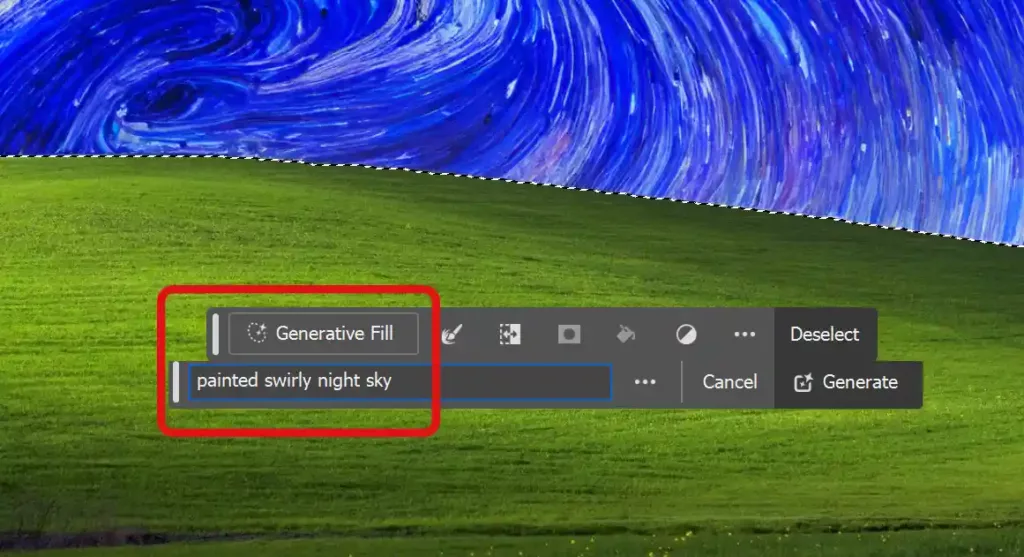
- Choose the region where you want to add, remove, or adjust content using any selection tool, such as the Selection Brush.
- Open the Intelligent Filling Tool through the appearing Contextual Task Bar or by navigating to Edit > Generative Fill in the menu bar.
- Enter a description of your desired content into the prompt input field.
- Click Generate and select from the variations displayed in the Properties panel—your generated content will appear in a new layer.
- (Optional) To create more variations, refine your text prompt and click Generate in the Properties panel.
Create Sharper Results with Enhanced Detail
Use the Enhance Detail feature to boost the sharpness of variations generated by AI-Powered Content Filler. This tool helps achieve finer detail and clearer edges, ensuring better integration with your original image.
- Generate an object using Generative Fill.
- Go to the Properties panel > Variations and pick your preferred version.
- Click the Enhance Detail icon to create a refined duplicate—you’ll now have both the original and enhanced variations.
- Select the variation that best fits your needs.
Learn more about Adobe’s AI features here